HR & People Operations
Timerfly
Attendance and productivity tracking for teams at computers
Know who's working, without chasing anyone. Timerfly records attendance, late marks, apps and websites from your team's computers.
Overview
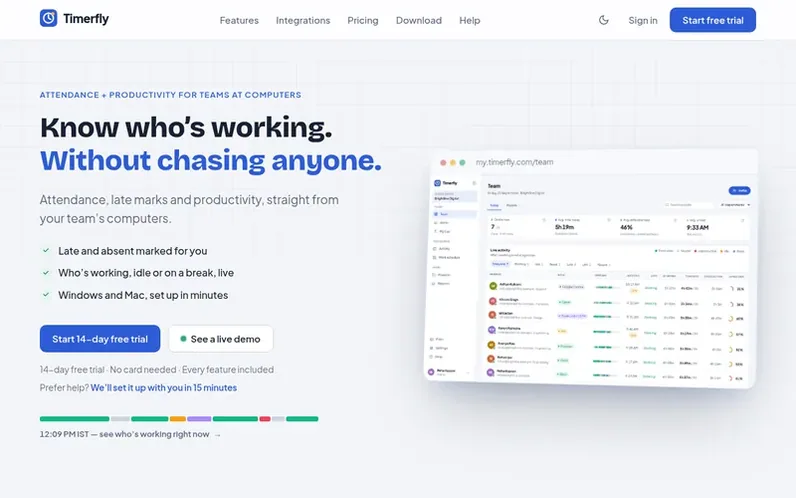
A look at timerfly.com
Timerfly is an attendance and productivity tracking application for teams working on computers. It automatically records when team members arrive and leave, marks late arrivals and absences, and tracks which apps and websites they use throughout the day. The desktop app starts recording automatically when employees sit down to work, eliminating the need for manual time tracking. Teams can view live dashboards showing who is working, idle, or on breaks, access detailed personal timelines of their work day, and generate reports ready for payroll. Optional screenshots and idle detection help measure productivity, while features like shift scheduling, leave management, and alerts integrate with team communication tools like Slack and Teams.
Feature notes
- Live team dashboard showing who is working, idle, or on breaks
- Automatic time tracking that starts when employees sit down
- Late marks, absent and left-early tracking
- App and website tracking with productivity categorization
- Alerts via Slack, Teams, Google Chat, and Telegram
- Leave and offline time management with approval workflow
Pricing
Pricing model: Freemium
Starter ₹159 per person per month (billed yearly); Pro ₹279 per person per month (billed yearly); Business ₹479 per person per month (billed yearly). Monthly billing also available at higher rates. 14-day free trial of all features.
Compare and explore
FAQ
- What does Timerfly record?
- Timerfly records which app and website is in use and for how long, window titles, and whether the computer is idle during the work day. Screenshots are only captured if your company turns them on. It never records what you type, only that there was keyboard or mouse use to distinguish active time from idle time. Nothing is recorded outside work hours, during breaks, or in private time.
- What can managers see versus what employees see?
- Owners and admins see everyone's time, apps, attendance and screenshots if enabled. Department managers see the same information only for their assigned departments. Employees see only their own day, reports and screenshots, plus their department's work schedule and which colleagues worked or were absent, but never anyone else's hours, apps, or screenshots.
- What happens when the free trial ends?
- The 14-day free trial includes every feature. After the trial ends, everything continues working for 3 more days while you choose a plan. After that, the workspace pauses until you select a paid plan. Nothing is deleted during the pause, and the desktop apps keep recording for 30 days in case you continue, so no days go missing.
- Can I see reports and export data to Excel?
- Yes. You can generate reports for any day, week, or month showing tracked time, effectiveness, and productivity for team members. Reports can be exported to Excel, and you can see which apps took the most time and which people were most productive or most distracted. Monthly attendance reports are formatted ready for payroll processing.
- How long does it take to set up Timerfly?
- Setup takes about 10 minutes total. You create your company account in 1 minute, invite your team by email or WhatsApp link in 2 minutes, and team members install the Windows or Mac app in 5 minutes. After installation, work days start automatically with no additional setup required.
Leave a review for Timerfly
No reviews of Timerfly yet. Run the first inspection.
Reviews are free and are never paid for. Open the reviews
Reviews and notes · Change log · Share the profile · Maker of this product? Claim the profile · Report a fault
Timerfly has a free listing. The owner can unlock the full profile with a paid launch for $5:
- Founder story (locked)
- Milestones (locked)
- Demo video (locked)
- Dofollow website link (locked)
Comparable tools
- Monitor360DR 51 · 0 community votes
- SquadoDR 2 · 0 community votes
- Staff SchedulingDR 31 · 0 community votes
- Staff GlanceDR 4 · 0 community votes